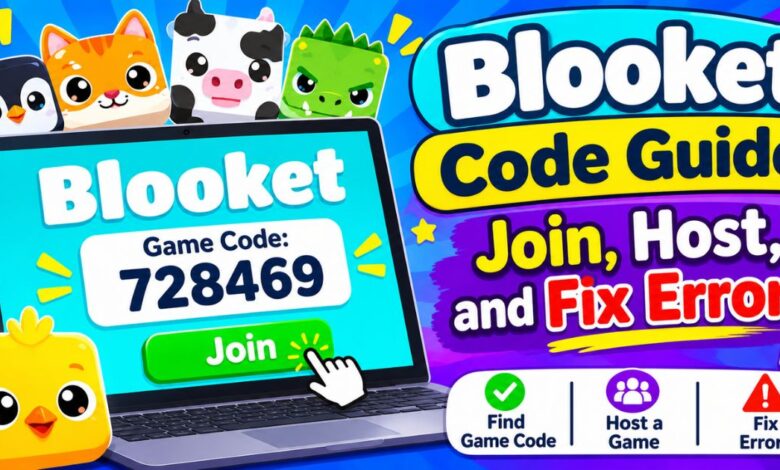
Your teacher says, “Open Blooket and enter the code.” The clock is ticking, and you are not sure where to type it. A Blooket code is the short number that gets you into a live game. This guide shows you how to join, host, and fix problems fast. Whether you are a student or a teacher, you will find clear steps, helpful tables, and classroom tips below.
What Is a Blooket Code and How Does It Work
A Blooket code is a numeric game code that Blooket creates when a host starts a live session. Think of it like a room number. Players type the code on the join page, pick a nickname, and land in the same game as their classmates. Each code belongs to one session, so a new game means a new code. Once the game ends, the code stops working.
Blooket is a game-based learning platform. Teachers build or pick question sets, then turn them into games that students play on phones, tablets, or laptops. The code connects every device to the host’s session. Students typically do not need to create an account to join, which keeps things quick. That makes the code the most important piece of information at the start of any class.
Here is what a game code does:
- Connects each player to the host’s live lobby
- Works only for that one session
- Gives the host control over who joins
How to Join a Game With a Blooket Code
Joining takes less than a minute. You only need a device with internet access and the code from your host. Use the same steps on a school Chromebook, a phone, or a home computer. If your teacher shares the code on a screen, enter it right away, because hosts can close the lobby once everyone is in. Here is the process, step by step.
- Open your browser and go to the Blooket join page at blooket.com/play.
- Type the Blooket code into the game code box.
- Click Join.
- Enter a nickname.
- Pick your blook (your character) if the game asks, then wait in the lobby.
Your nickname matters more than you think. Many teachers use it to track participation and award points, so use the name they ask for. Keep it school-appropriate, since the host can see every nickname in the lobby and can remove players. If the page says your code is invalid, double-check each digit before you try again. Typos cause most join errors.
How to Host a Game and Share Your Code
Hosts create the code by launching a game. First, log in to your Blooket account and open a question set from your library or the Discover page. Next, choose Host, pick a game mode, and adjust the settings. When you start the lobby, Blooket shows the code on screen. Share it on your projector, in your learning management system, or on the board.
Plan for different class needs. Live games work best when everyone plays at once and you want energy in the room. Homework mode lets students play on their own time, so you share a link and set a due date instead. Pick the format that matches your goal. A review day calls for live play, while extra practice suits homework.
Run through this checklist before you share the code:
- Review the question set for errors
- Choose a game mode that fits your goal
- Check time limits and other settings
- Make sure every student can see the code
- Confirm all devices are charged and online
Blooket Game Modes Compared
Your game mode shapes how students feel about the review. Some modes reward speed. Others reward strategy or teamwork. All of them use the same Blooket code to get players in, so you can switch modes between sessions without changing how students join. Try two or three modes early in the year and watch which ones keep your class focused and which ones spark too much chatter.
| Game Mode | Play Style | Best For |
|---|---|---|
| Gold Quest | Fast and competitive | Quick recall practice |
| Tower Defense | Strategic and team-based | Collaboration |
| Cafe | Calm, goal-driven | Students who dislike time pressure |
| Classic | Simple question-and-answer | Straightforward review |
| Battle Royale | Competitive | High-energy review days |
Blooket updates its lineup from time to time, so check the current list when you host.
Match the mode to your goal. If you need quick recall practice, pick a fast, simple mode. If you want collaboration, choose a team-based option. Students who feel anxious about speed often do better in calmer modes. Also watch your class size. Larger groups can make competitive modes loud, while smaller groups benefit from head-to-head play. Adjust after each session based on what you saw.
Blooket Code Not Working? Common Problems and Fixes
Most join problems are small and easy to fix. The usual causes are a typo, an expired code, a weak connection, or a blocked website. Start with the simplest check: read the code again and type it slowly. If the game has already ended, the code will fail no matter how many times you try, so ask your teacher to start a fresh session.
| Problem | Likely Cause | Fix |
|---|---|---|
| “Invalid code” message | Typo or ended game | Recheck each digit; ask for a new code |
| Page won’t load | Weak Wi-Fi or school filter | Switch networks; ask IT to review the site |
| Stuck in the lobby | Host has not started | Wait, then refresh the page |
| Removed from the game | Host removed the player | Rejoin with an appropriate nickname |
| Slow or laggy play | Too many tabs or old browser | Close tabs; update or switch browsers |
If a school filter blocks Blooket, do not look for workarounds. Ask your teacher or IT staff to review the site for approval. Never use third-party tools or “hacks” that promise free points or unlimited access. They can break Blooket’s rules and put your device or account at risk. A clean refresh, a different browser, or a restart solves most problems without any of that.
Do I need an account to enter a Blooket code?
No, students can typically join a live game as guests. They enter the code, choose a nickname, and play. An account becomes useful when students want to save progress, collect blooks, or track stats over time. Teachers do need an account to host, build question sets, and view reports. Check your school’s policy, because some classes may require student accounts.
Does a Blooket code expire?
Yes, in practice. A code works only while the host’s session is active. Once the host ends the game, the code stops working, and you need a new one to play again. If you want students to practice later, assign the set as homework instead. That way, students can play at their own pace without depending on a live lobby.
Tips for Using Blooket Codes in the Classroom
A smooth start sets the tone. Post the Blooket code where every student can see it, and read it aloud once. Ask students to join before you explain the rules, then use the lobby time for a quick warm-up question. This keeps early finishers busy and stops the room from filling with side conversations while slower devices connect. Small habits like this save minutes.
Here is a simple example. A fifth-grade teacher wants a quick fraction review. She picks a ten-question set, hosts a fast mode, and projects the code before the bell rings. Students join as they sit down. After ten minutes, she checks the results, spots three questions most students missed, and reteaches those ideas the next day. The game turned a routine review into useful data.
Keep your sessions secure with these habits:
- Share codes only with your class, never on public social media
- Review the lobby for unfamiliar nicknames before you start
- Remove any player who should not be there
- Set clear nickname rules before students join
Conclusion
A Blooket code is simple, but it unlocks the whole experience. Students enter it on the join page, pick a nickname, and play. Teachers generate it by hosting a game and sharing it with the class. If something goes wrong, check for typos, ended sessions, and connection issues first. With the right game mode and a smooth start routine, every Blooket game becomes a better review.